Manage your VPS from the client area
Find your VPS in the client area, then open the console, reboot, shut down, rebuild, reset the root password or upgrade resources.
Every CR Servers VPS has its own page in the client area. From there you can see its IP addresses and resources, open a console in the browser and power it on, off or restart it, without opening a ticket.
Find your VPS
- Sign in at clients.crservers.com.
- In the sidebar, under Your services, click Virtual private servers.
- The list shows each VPS with its hostname, status, IP address and Next renewal date. Click Manage next to the one you want.
The page opens on the Overview tab. The card at the top shows the hostname, status, plan, renewal date and price.
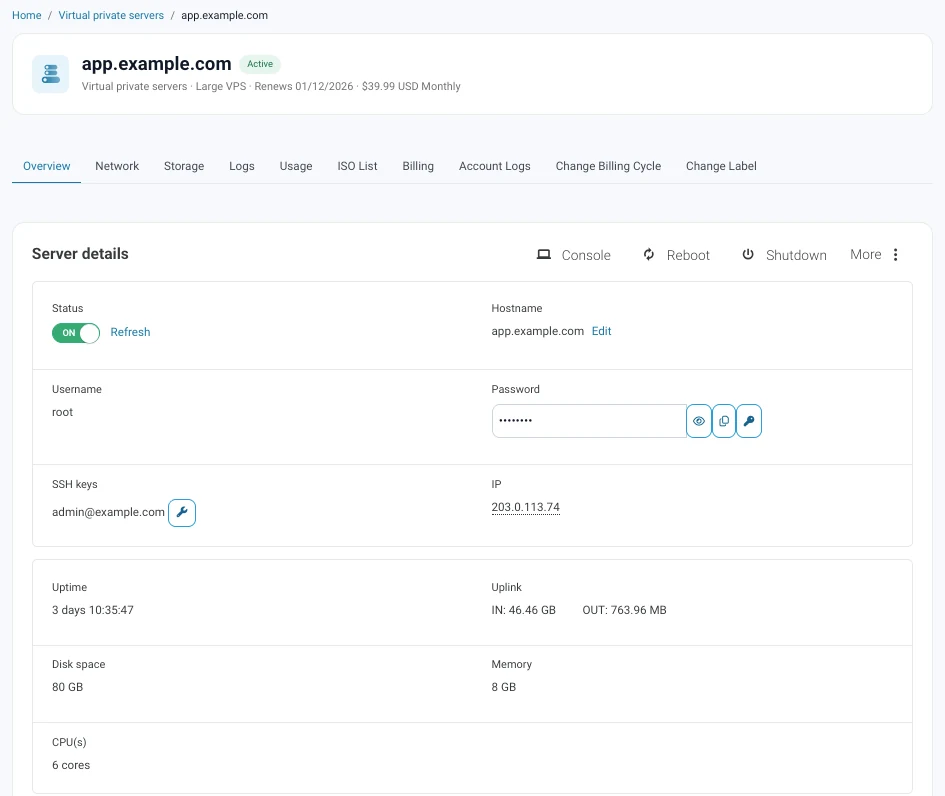
What you see on Overview
The Server details card has the details you need to connect:
| Field | What it shows |
|---|---|
| Status | Whether the VPS is on. The switch next to it turns the VPS off or on, so don't click it unless that is what you want. |
| Hostname | The server name. Edit changes it. |
| Username | The administrator user, usually root |
| Password | Hidden. Use the buttons next to it to show or copy it, or to reset it. |
| SSH keys | The SSH keys installed on the VPS |
| IP | The public IPv4 address, and IPv6 when assigned |
| Uptime, Operating System, Disk space, Memory, CPU(s) | Current state and plan resources |
To connect, see SSH access to your VPS.
Server actions
The buttons at the top right of Server details act on the VPS. Console and Reboot are always visible; the rest are under More (⋮). On a phone, all of them are under More.
| Action | What it does |
|---|---|
| Console | Opens the server screen in your browser. Use it when SSH doesn't respond. See Open the VPS console. |
| Reboot | Restarts the VPS. Open connections drop for a minute or two. |
| Shutdown | Asks the operating system to shut down cleanly. The VPS stays off until you turn it on again with the Status switch. |
| Rebuild | Reinstalls the operating system. This erases everything on the VPS. Make your own backup first. |
| Upgrade | Move the VPS to a larger plan or add IP addresses and disk. You see the price before you confirm. See Move your VPS to a larger plan. |
| Boot Order | Choose which device the VPS boots from. Only needed for recovery or a custom install. |
| Cancel VPS | Request cancellation of this VPS. See Request a cancellation. |
The client area asks you to confirm before it reboots, shuts down or rebuilds.
Reset the root password or SSH keys
In Server details, next to Password, click the reset button and confirm. The new password replaces the old one, so update any saved connections. Next to SSH keys, Reset SSH Keys replaces the keys installed on the VPS.
Your account's own SSH keys are under Security → SSH Keys in the sidebar (how).
Other tabs
| Tab | Use it for |
|---|---|
| Network | Network interfaces and IP addresses. With a private network, it shows as a second interface |
| Storage | The VPS disks |
| Logs | Tasks run on the VPS, such as reboots and rebuilds |
| Usage | Resources (CPU, memory and disk over time) and Network traffic |
| Billing | Price, billing cycle and renewal date |
| Account Logs | The service's history in your account |
| Change Billing Cycle | Move to a longer or shorter billing cycle |
When to open a ticket
Reverse DNS (PTR), extra IP addresses, and anything you can't fix from the console: open a ticket with the VPS hostname. If the server is down and it's urgent, call or write on WhatsApp (how support works).